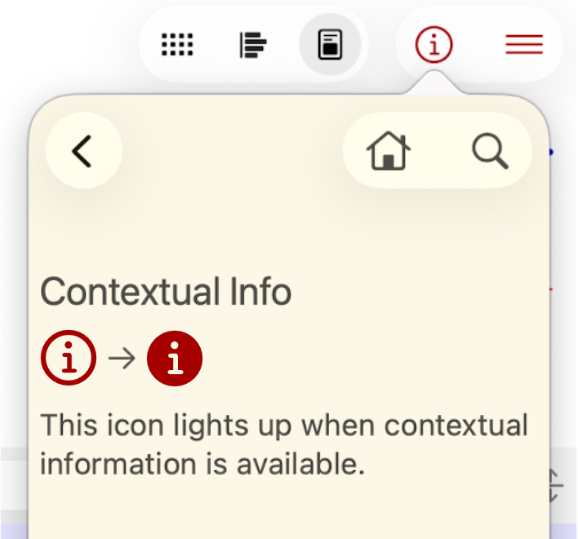
In the MeoTempo app, Info Cards give you precise guidance based on context.
Just tap the icon to open them.
It lights up whenever contextual information is waiting for you.
This is what matters to you
Topics are located in the left panel under the tab. If you don’t see it, click the icon to expand the panel.
Those you interact with
Persons appear in the left panel under the tab.
You can sort a person into three categories depending on how many stars you give them.
What you do
Events appear in the left panel as a list under the tab.
The right panel also displays the events in your Schedule at the bottom of your screen.
The “Sun”
What you’re doing “now” appears at the top of your agenda:
And the corresponding event is marked with a sun icon:
Linear calendar
The MeoTempo Agenda presents a linear calendar format, displaying the past on the left and the future on the right.
Daily events appear in columns, while weekly, monthly, yearly, and life events are displayed in bands at the bottom.
Your Personal Database
Select the “Notes” option from the top right menu.
Your notes are related to a topic , to a person , or to an event .
Only what you keep counts
To access the Global Filter, click on the filter icon in the top left corner of your screen.
Use this feature to exclude filtered events from time calculations (Events will also be hidden).
Click on the three dots icon ⋯ to access more options.
Not visible but still count
Use the Visibility Filter to hide some events while keeping them in the loop for time calculation.
To access Visibility Filter, click on the separation bar eye icon in your Notes.
Your notes has two parts
Your MeoTempo Notes window is divided into two parts: upper and lower.
The upper part displays the notes for either:
— a Topic,
— a Person, or
— an Event.
Topics, persons and events list
Double-click the topic, person, or event icon to collapse or expand the list.
Hours to do something else
MeoTempo computes the time left for you to pursue other tasks,
...this for each day, week, month and year:
See where your time goes
To access your time graph, select the “Chart” option from the top right menu.
(This graph is not available for iPhone.)